SmegAria App

The first thing you need to do is download the SmegAria App on your mobile device. Then, create a new user account by following the procedure provided when the application starts. Next, you need to register the appliance (in the “Add Product” section) by following the step-by-step instructions. Once the procedure is complete, the product will be connected to the SmegAria Cloud via the Internet, and you will be able to control it through the App, wherever you are.
A dedicated section is available for sensor data, which contains graphs showing the measured values over time.
When the product is connected and the VOC and/or CO₂ values exceed certain thresholds, the App will notify you through appropriate alerts.

The SmegAria App is available for smartphones with iOS version 13.0 or higher or Android version 7.0 or higher.

Before starting the device registration, make sure that:
• your appliance has SmegAria technology;
• your appliance is connected to a power outlet;
• your router is connected to the Internet;
• the Wi-Fi function (2.4 GHz band, security at least WPA2) has been activated;
• you have your Wi-Fi network details (network name and password) at hand;
• you have a smartphone or tablet device with iOS version 13.0 or higher or Android version 7.0 or higher.

A device can be deleted, especially if the user decides to discontinue the product. User deletion is done through the App, from the user settings. In the screen for editing personal data, the last item is “Delete my profile.” The device deletes all data, returning to factory settings.
If a product that was previously registered, has collected data, and was then deleted is registered again, the previously collected data will not be displayed via the App.

Through the App, using the “Delete account” action available in “Edit Profile” within user settings.
The deletion will remove all data related to your account and the devices associated with it.

The photocatalytic filter can be regenerated indefinitely by washing with fresh water. It is recommended to wash it at least once every 6 months of normal use, depending on the amount of accumulated dirt and product usage. Gently remove dust using a vacuum cleaner or an air jet. Wash the filter under running water to remove any remaining dust. Do not use tools that could scratch the filter’s surface. If dirt is persistent, immerse the filter in water at room temperature for about 15 minutes; gently remove excess water and dry the filter with a cloth, without rubbing.

To correctly regenerate the metal cage containing activated carbon granules, follow these steps:
1. Washing: Place the cage inside the dishwasher and run a washing cycle at 55°C.
2. Drying: After washing, dry the cage in the oven for 15 minutes at 60°C.
3. Frequency: It is recommended to perform regeneration every 6 months.
4. Granule replacement: Once the maximum number of regenerations has been reached, unscrew the cage lid, remove the exhausted granules, and replace them with new activated carbon granules.

The photocatalytic filters used in SmegAria devices do not require any replacement, ensuring significant cost savings and full respect for sustainability. In contrast, most conventional air purifiers use HEPA filters, which must be replaced periodically. Moreover, these filters may not capture all small pollutants and can promote the growth of mold and bacteria inside them, reducing purification effectiveness.
Scientific studies have also shown that, in addition to removing VOCs, toxic gases and chemicals, photocatalytic units can neutralize dangerous gases such as carbon monoxide and nitrous oxide, pollutants that often escape HEPA technology.

The heating system or air conditioning can affect the temperature detected by the device so that the temperature is between 19–22°C (66–71°F) in winter and 24–26°C (75–79°F) in summer. The unit of measurement is automatically set based on the geographical area you are in. To change it, go to Profile, Change Unit. Here you can choose whether to display the temperature in Celsius or Fahrenheit.

The detected parameter may be influenced by the room’s environmental conditions and the type of installation. To ensure accurate measurements, make sure the device is installed in an area with adequate ventilation and away from direct heat sources or drafts. In addition, carefully follow the installation instructions provided in the manual.

VOCs (Volatile Organic Compounds) are carbon-based chemical compounds that tend to evaporate easily into the air at room temperature (20°C/68°F). Prolonged exposure to these compounds can cause mild discomfort, such as irritation to the eyes, nose, and throat, but also more serious issues, such as breathing difficulties or disorders of the central nervous system. Monitoring VOC levels is therefore essential to assess indoor environmental well-being. VOC concentrations vary throughout the day depending on factors such as temperature, humidity, and emissions from various sources. The main sources of VOCs are cosmetic and deodorant products, furniture and building materials (which can continue to emit substances for months, or even years in the case of formaldehyde, after being installed), human respiration, heating devices, cleaning products, and a wide range of items (such as glues, adhesives, solvents, paints, detergents…), recently dry-cleaned clothes, cigarette smoke, the use of candles or air fresheners, and even work tools like printers and photocopiers. Furthermore, placing the device near air intakes in areas with high pollution (such as busy roads, underground parking lots, or garages) can result in significant entry of VOCs from outside.
It is important to remember that there are multiple variables within a home that affect VOC concentration and the ability to dilute them over time, such as the layout of the spaces and the design of the air recirculation system. KITARIA helps reduce VOC concentration, but to optimize air improvement it is also essential to adopt additional measures, such as frequently ventilating rooms, avoiding the use of chemical products or air fragrances, and choosing low-emission items. The goal should be to keep VOC levels below 1 mg/m³.

Carbon dioxide, or CO₂, is a colorless and odorless gas mainly produced by human respiration and the combustion of carbon; it is present in the air at a concentration of 0.04% (400 ppm), which is why, even after proper ventilation, the sensor reading will tend not to fall below this value. At high levels, CO₂ can cause symptoms such as headaches and fatigue. Monitoring CO₂ is essential for assessing indoor air quality and ensuring adequate ventilation: the air must be changed to dilute all pollutants of different chemical, biological, and physical nature that have accumulated. CO₂ concentrations vary throughout the day depending on temperature, humidity, and emissions from individual sources. The cause of such significant variability (i.e., the peaks you see in the app) may be associated with the number of occupants present, the type of activities performed by the occupants, the type of room (size, layout), the type and method of opening/closing windows, the air conditioning system with limited hourly changes or excessive recirculation, and also the agricultural-urban context in which the home is located.
It is important to remember that there are many variables in a home that affect CO₂ concentration and the ability to dilute it over time, starting from the layout of the spaces and the design of air recirculation. It is also essential to adopt additional measures, so we recommend improving ventilation and/or air exchange (for example, opening windows more frequently, regularly checking the condition of ventilation systems: airflows, flow rates, and operating times). The optimal level is below 1000 ppm.
According to SIIAQ (Italian Society of Indoor Hygiene and Air Quality), sensor readings may be influenced by the following variables:
• number of people present, their activities, and their time spent indoors;
• type of materials present, their emission certifications, paints and enamels used;
• room size and the location of radiators/heating elements, bathroom placement, presence and location of elevators or other structures, etc.;
• characteristics of the system and the way the necessary air exchange takes place (for example, natural ventilation or controlled mechanical ventilation – CMV);
• cleaning methods and frequency (for example, type of broom and/or vacuum cleaner, use of microfiber cloths, type of detergents used, possible use of insect and pest repellents, etc.);
• possible presence of issues such as peeling paint, dirt or debris, stains from water damage (for example, walls, ceiling tiles, etc.), moisture on surfaces (for example, condensation on windows), malfunctioning systems, etc.;
• incorrect placement (see FAQ for correct positioning).

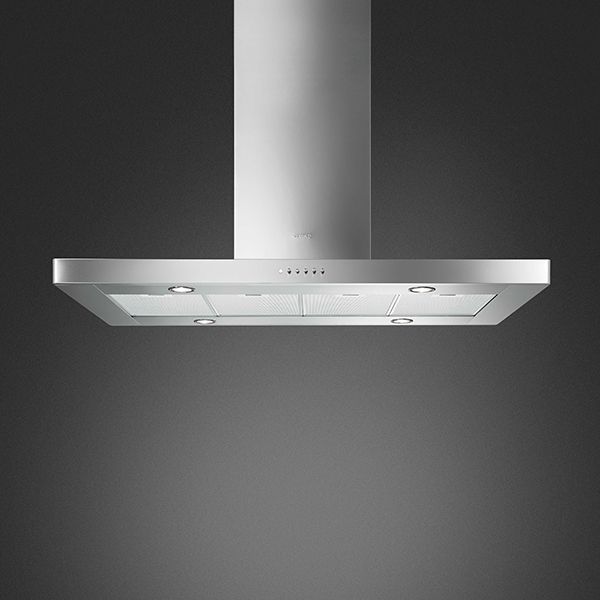
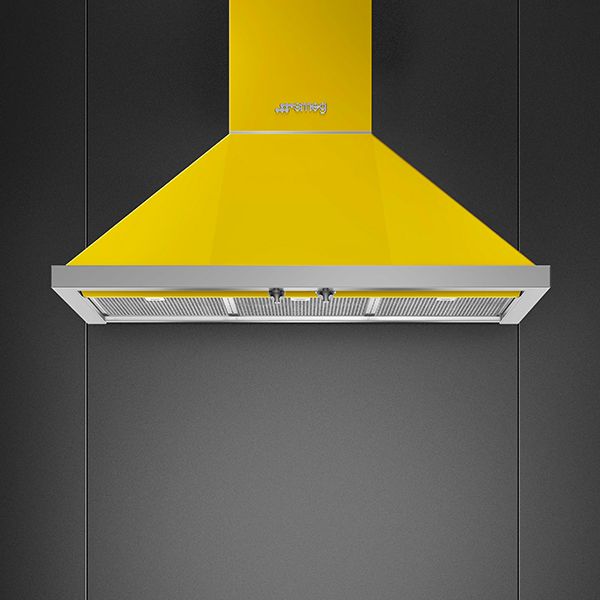
KITARIA can be installed exclusively on filtering hoods. It must be positioned at the inlet of the standard 150Ø motor and connected to electricity.

The air is conveyed into the core of the SmegAria technology, where an innovative and cutting-edge photocatalytic filter destroys pollutants.
Our next-generation technology is able to transform into harmless substances bacteria, viruses, mold, VOCs (Volatile Organic Compounds) and, in particular, formaldehyde, odors, CO, PM10, PM2.5 and PM1.0:
• eliminates 99.9% of bacteria within the first hour;
• removes 80% of mold within the first hour;
• reduces formaldehyde by 85% in just 60 minutes;
• decreases toluene by 80% in 100 minutes;
• lowers ammonia by 90% in the first 6 minutes;

SmegAria is also very effective against odors and can destroy viruses such as:
• avian influenza virus (subtype H9N2), with a 66% reduction in 4 hours;
• influenza A (H1N1) virus, with a 75% reduction in 8 hours.

• Airborne bacteria reduction test with WO₃ photocatalytic system.
• Airborne formaldehyde contamination reduction test with WO₃ photocatalytic system.
• Evaluation of the antiviral activity (SARS-CoV-2) of a PCO filter.

The indication of air quality is provided through the status LED, which pulses for 3–6 seconds with a color that depends on the air quality:
• poor: red;
• low: orange;
• acceptable: yellow;
• good: green;
• excellent: white.
This indication is visible only when the product is registered in the App and connected, with no errors present.

The illumination LEDs are on by default; if you wish to turn them off, losing, however, the photocatalytic action of the filter, you simply need to select the appropriate button in the section of the App dedicated to ventilation management.
This operation is only possible through the application.

KITARIA can be reset:
• On the product, by pressing the button on the front for 3 seconds, using a plastic tip.
• On the App, by pressing the “Reset product” button in the product settings.

Yes, if KITARIA is not registered in the App, the air quality indication will not be visible and it will not be possible to turn off the illumination of the photocatalytic filter.

KITARIA communicates the possible presence of sensor errors to the user through the status indicator, with a pulsing red light. If the product is registered, the following error codes are shown on the App:
• E01: Temperature sensor error;
• E02: Humidity sensor error;
• E03: VOC sensor error;
• E04: CO₂ sensor error.
Try restarting the device. If the problem persists, contact technical support.

To connect the appliance: after registration, the product is connected and remains in this state indefinitely. In case of connection loss (e.g., router shutdown), the appliance will attempt to reconnect for 5 minutes. Upon a subsequent restart, the product will try to reconnect automatically.
To disconnect the appliance: send a command to the device via the App, using the “Disconnect product” button available in the product settings.

No. Regarding the product connection, the App only displays its status and does not allow remote activation. If the appliance is unplugged without first disabling the Wi-Fi connection, the disconnection status will be updated on the App after several seconds.

The App is free and can be downloaded from the APP Store (for Apple devices) or Google Play Store (for Android devices).

To create a SmegAria account, you need to install the SmegAria App and perform a new user registration.

It is possible to change the address in the SmegAria App within the “Edit Profile” section.

Yes, you need to install the SmegAria App and log in with the same user account.

Yes, it is possible to connect multiple devices with the same technology.

You will need to download the SmegAria App again from the Apple or Google Play stores and enter your SmegAria account username and password.

Check that the Wi-Fi router is turned on;
• check that the Wi-Fi router is not too far from the device;
• check the status of the Wi-Fi network (2.4 GHz band);
• check the status of the Internet connection;
• unplug the appliance and try the operation again later.

• Check that the mobile device has Bluetooth enabled;
• check that the mobile device is not too far from the product (maximum 8–10 m);
• unplug the appliance and try the operation again later;
• reset the product using the appropriate button and try the operation again.

• Check that the Wi-Fi router is turned on;
• check that the Wi-Fi router is not too far from the device;
• check the status of the Wi-Fi network (2.4 GHz band);
• check the status of the Internet connection;
• retry the procedure, verifying the password entered for the Wi-Fi network;
• unplug the appliance and try the operation again later.

During the first registration, the SmegAria App (in a step of the "Add product" procedure) displays the names of Wi-Fi networks. If you do not see your network name (SSID) among those listed, the cause may be one of the following:
• The Wi-Fi router may be configured not to broadcast its SSID. In this case, you will need to manually enter your network name or enable SSID broadcast on the router. For instructions on how to access the wireless router configuration settings, refer to the router documentation or your Internet service provider.
• The product with SmegAria technology may be too far from the router and the Wi-Fi signal strength insufficient. For more details, refer to the dedicated FAQ.
• The Wi-Fi router may not be turned on. If the Wi-Fi router is on and reasonably close to the SmegAria product, repeat the registration steps, as the network scan results may vary due to interference from other electronic devices such as microwave ovens, alarm systems, and cordless phones.

SmegAria devices support the following Wi-Fi security protocols:
• WPA2-PSK;
• WPA/WPA2-PSK;
• WPA2-Enterprise;
• WPA3;
• WPA2/WPA3-PSK;
These protocols ensure a high level of protection for wireless communications. It is recommended to use WPA2 or WPA3, where available, to ensure maximum security. Obsolete protocols such as WEP or WPA (without WPA2) are not supported.
Occasionally, software (firmware) updates for the appliance are released. If it is connected to the home Wi-Fi network, the updates are automatically downloaded. During the download and installation, the connectivity service is temporarily suspended. The update takes a few minutes.

Within the App, in the “Product Settings” menu, information related to the connection is available, such as:
• device registration date;
• network name;
• Wi Fi signal level;
• MAC addresses;
• firmware versions, including that of the connectivity module;
• SW Compliance ID (compliance identifier with the essential requirements of the RED directive).

Once successfully registered for the first time, the SmegAria device will retain the Wi-Fi settings and will not require further actions, unless the Wi-Fi settings are changed for some reason, for example if the wireless router is replaced or a new router is provided by your Internet service provider; in this case: if the new router is configured with the same Wi-Fi settings (network name and password) as the original router, all Wi-Fi devices, including SmegAria devices, should automatically connect to the new router. If the new router is configured with different settings from the original, all Wi-Fi devices, including SmegAria devices, will need to be reconfigured with the new settings. For SmegAria devices, refer to the specific procedure provided in the SmegAria App (section “Wi-Fi Network” in the Product Settings menu).

If the new wireless router has different Wi-Fi settings (network name and password), the SmegAria devices must be reconfigured following the specific Access Point change procedure in the App (section “Wi-Fi Network” in the Product Settings menu). It is also essential to ensure that the new router is active on the 2.4 GHz band and that the Wi-Fi network is secured at least with the WPA2 standard. If the router has the same settings as the previous one, the SmegAria devices should reconnect automatically.

This procedure, available in the App under the "Wi-Fi Network" section of the Product Settings menu, is used to reconfigure the Wi-Fi settings of your SmegAria device if the credentials (network name and password) for the existing router or a newly replaced router change. As with the registration procedure, the App will guide the user step by step to complete the configuration of the new Wi-Fi settings on the appliance.

Yes, SmegAria appliances support IPv6 addressing.

To ensure that SmegAria devices connect properly to the Internet, make sure that the following protocols/ports are not blocked by your router/firewall settings: port 80 (HTTP); port 443 (HTTPS); port 53 (DNS); port 123 (NTP); port 67 (DHCP).